Recovering lost files
Few weeks ago, I was trying to find a file - very old file. I have a bad habit of not backing up my files, except I know [I REALLY NEED TO BACK THIS ONE UP]
I found TestDisk, a tool that can be used to recover lost partitions and potentially revive non-bootable disks.
You can check it out here:
$ ~ TestDisk
I'm not a big expert of using testDisk, I'm just showing you how I used it to recover files that I had forgotten about.
If you use Linux, you can install testdisk using
$ sudo apt install testdisk
I'm on a MacOS so I'm just going to use homebrew
$ brew install testdisk
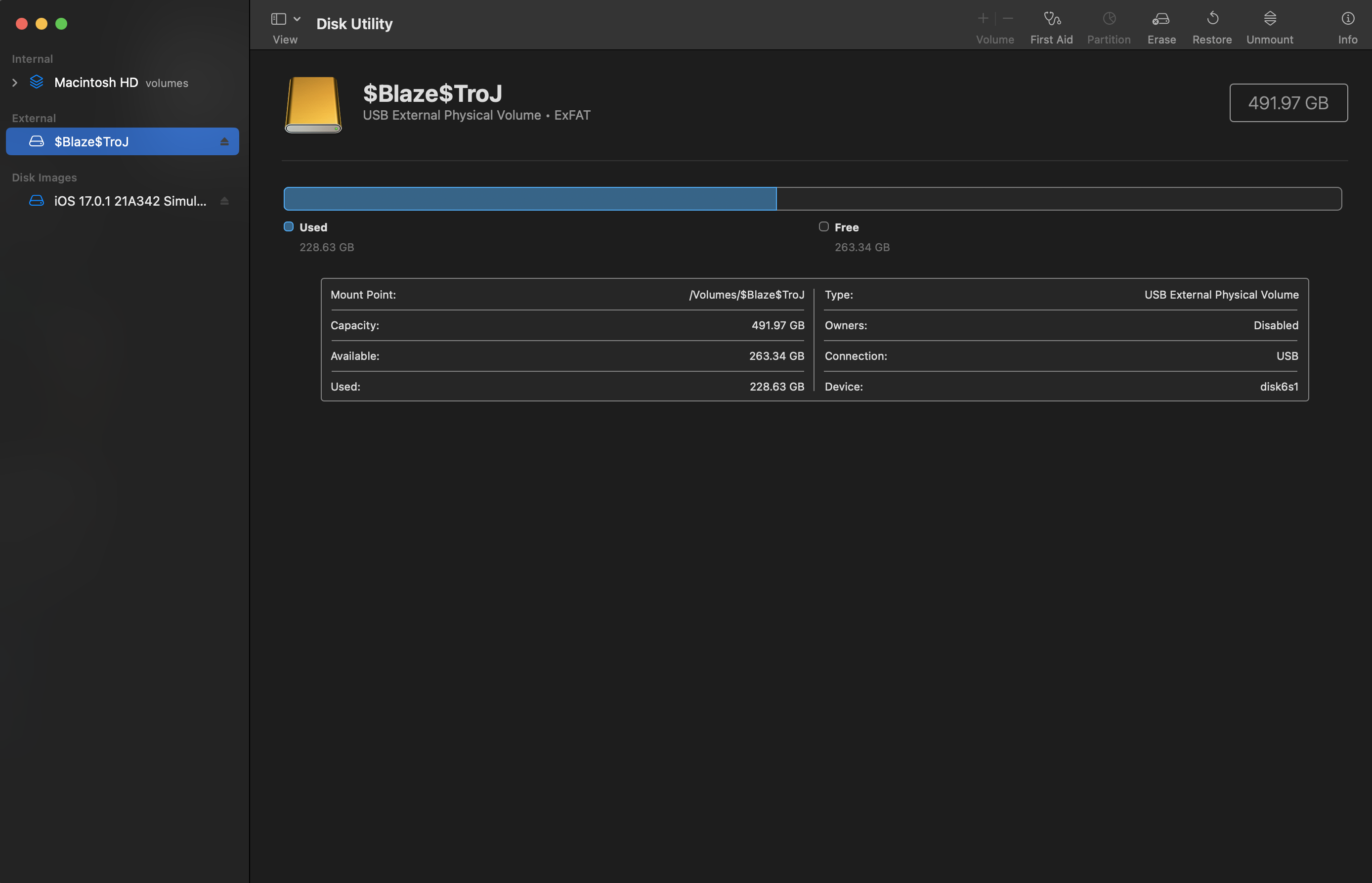
Above is the list of disks connected to my machine.
After successful installation, to use TestDisk You type the testdisk command into your terminal.
Run testdisk as root
sudoso you can get access to view the connected disks
$ sudo testdisk
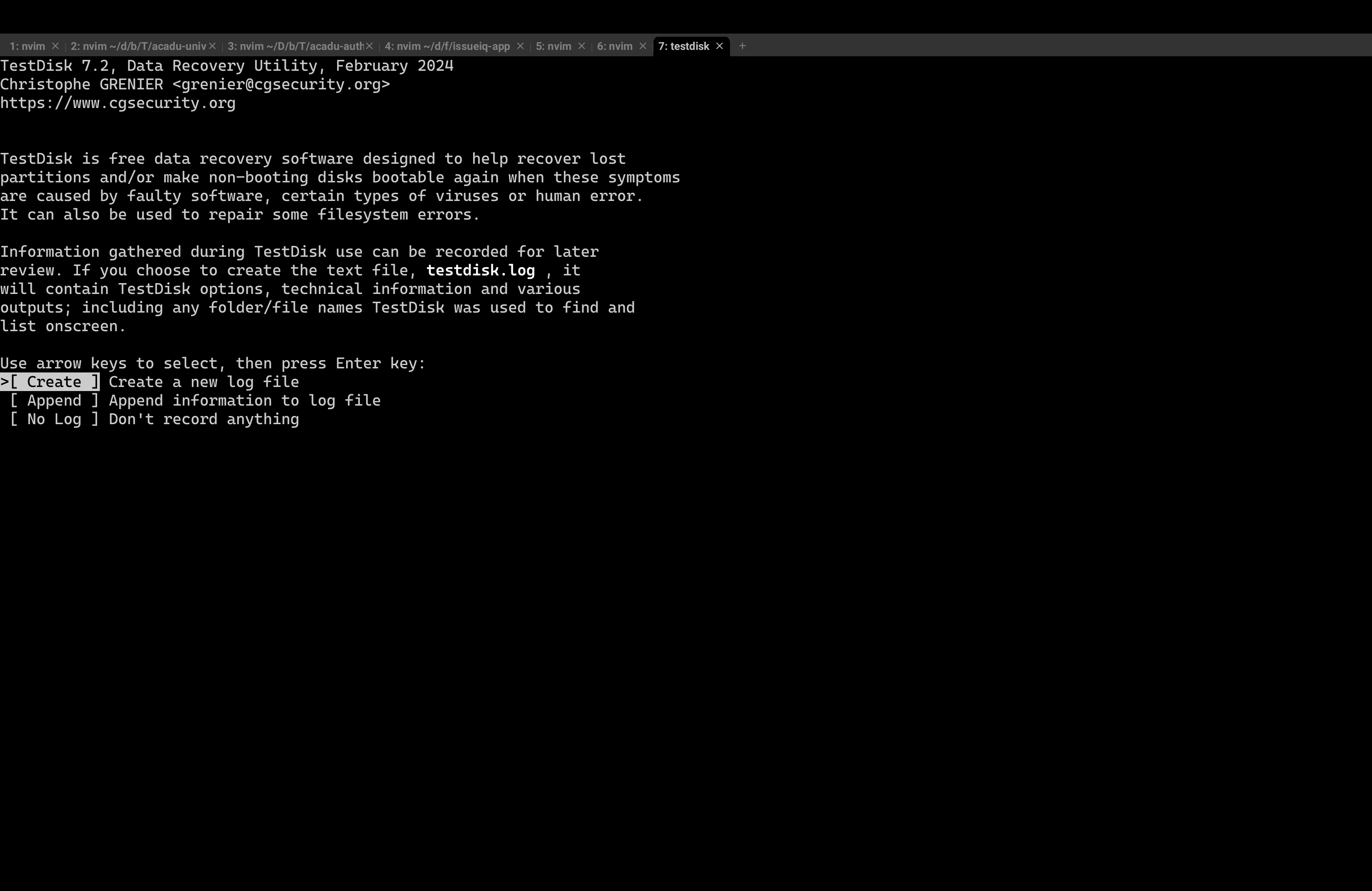
I really don't need to record what I'm doing so I would go with the NO LOG option
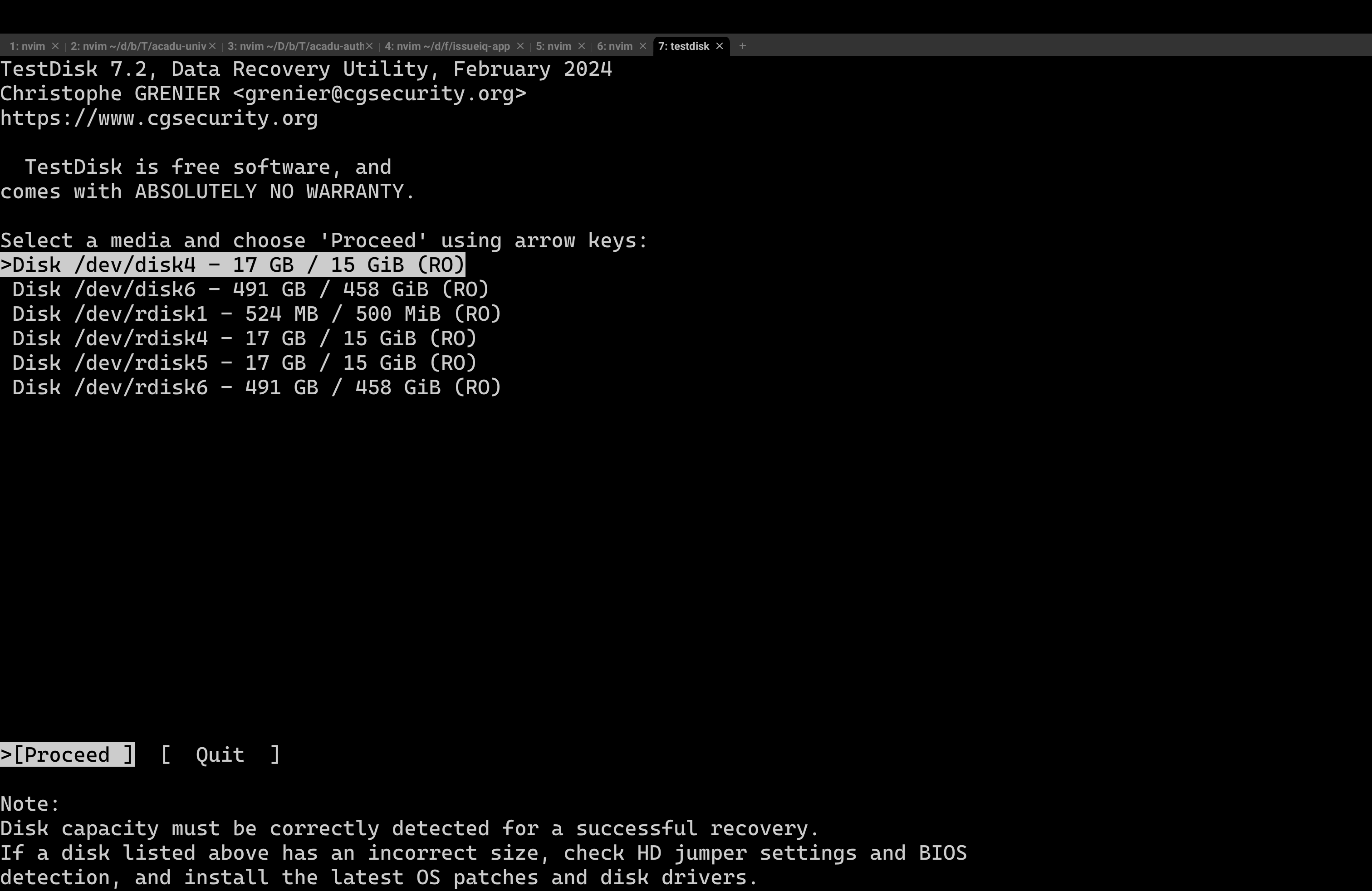
It's showing the available disks on my machine; most are just logical partitions. We need to identify the external disk but this isn't really giving us a proper identifier.
We can find out by using the
diskutilcommand
$ diskutil list
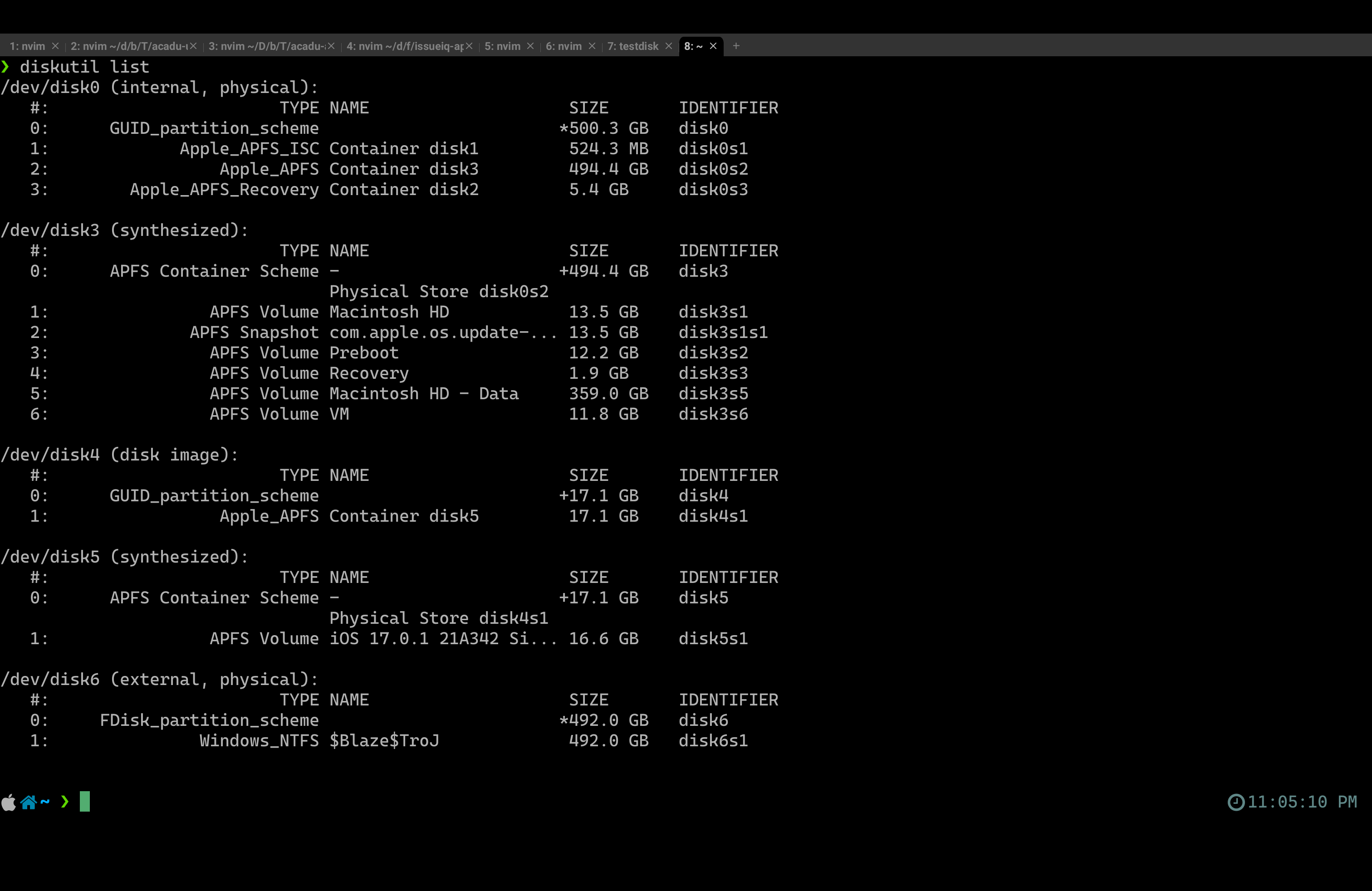
So, the last disk here is labeled external. 492GB $ disk6
Go to the previous image before this, we can see our
disk6there as well
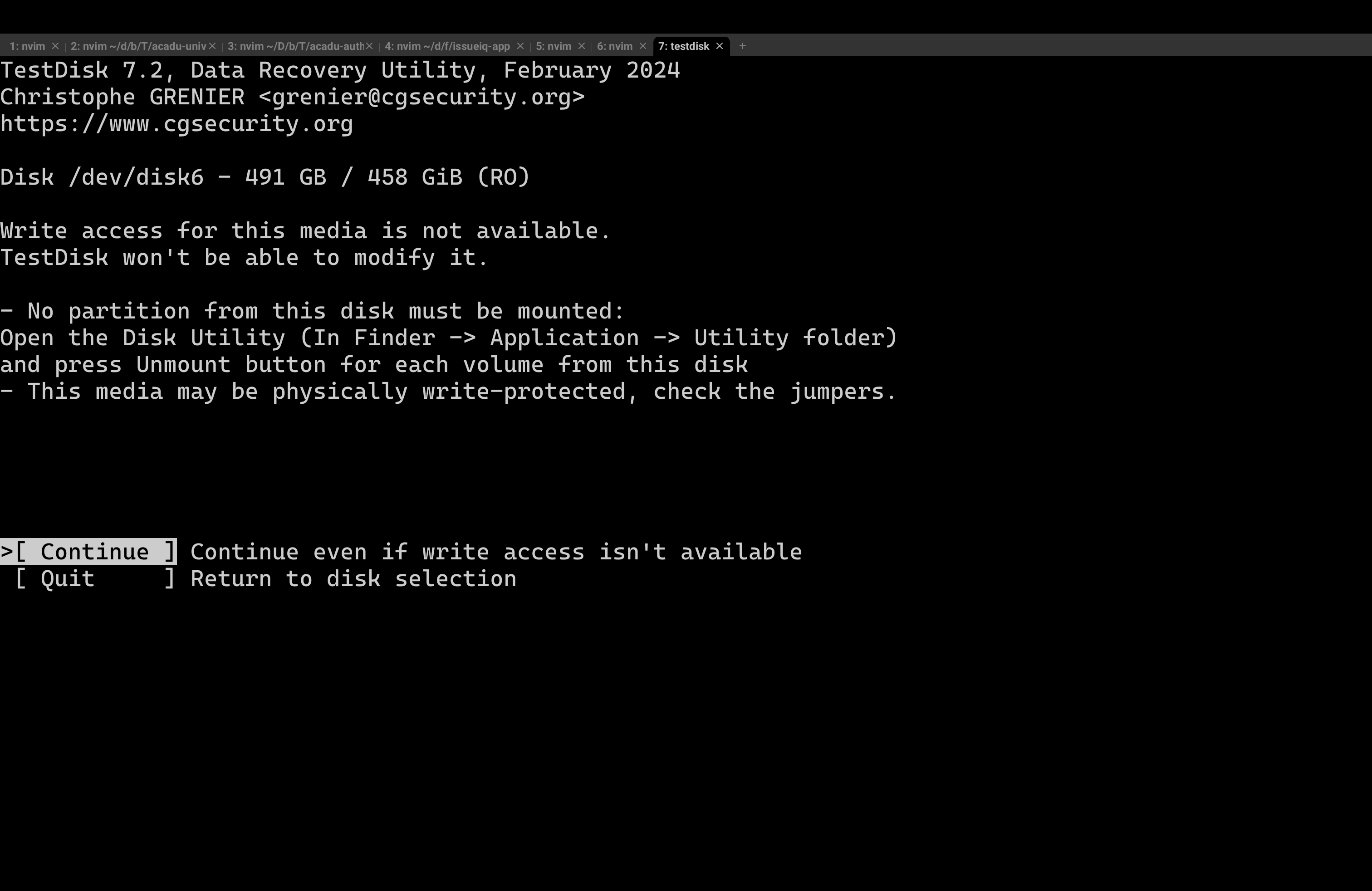
This is a notification basically letting us know we don't have write access to this disk and can only read it's content. Continue!
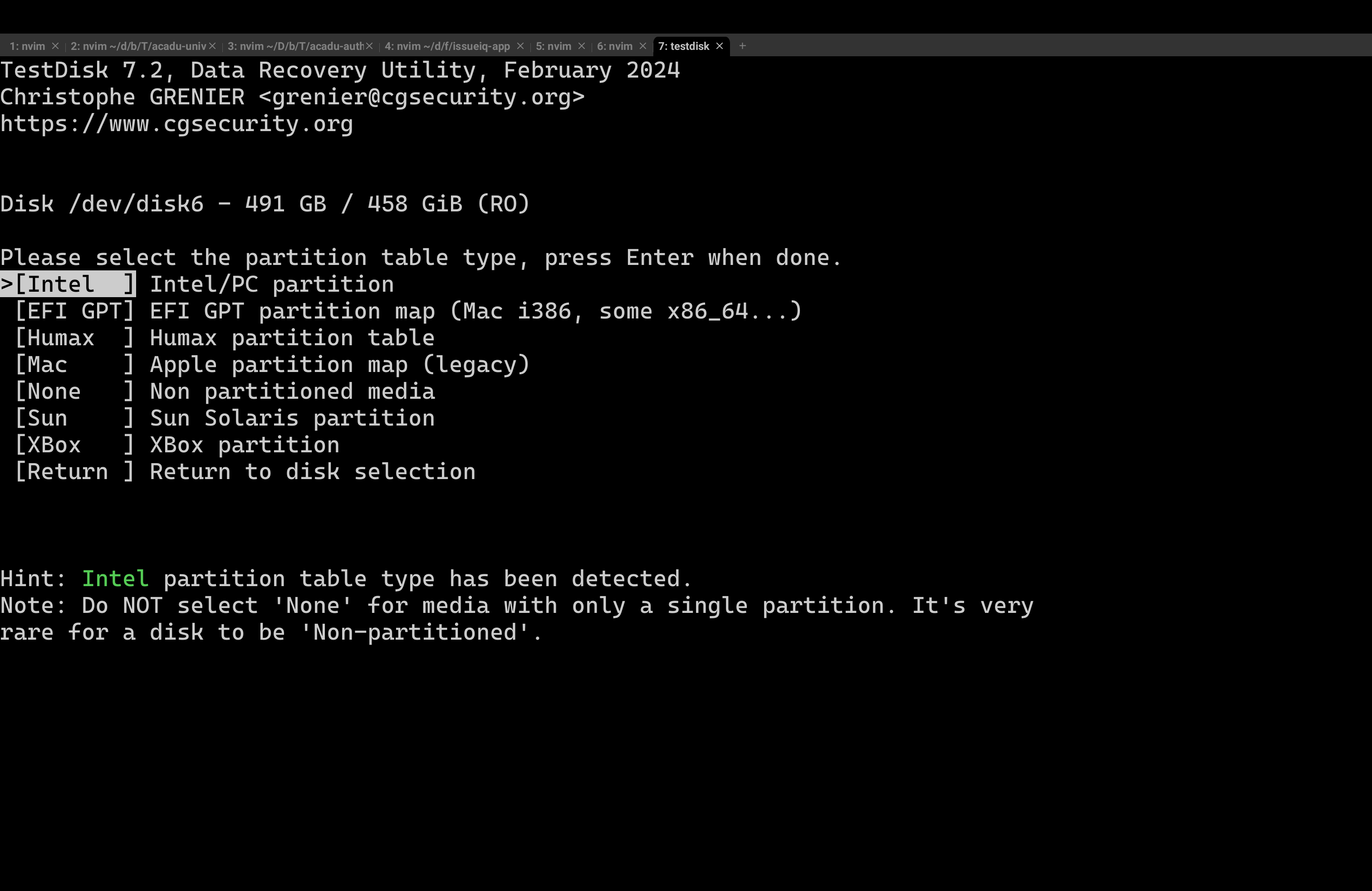
It would automatically detect the partition table type, proceed with that.
Here, we can see the various activities that we can perfom on the disk.
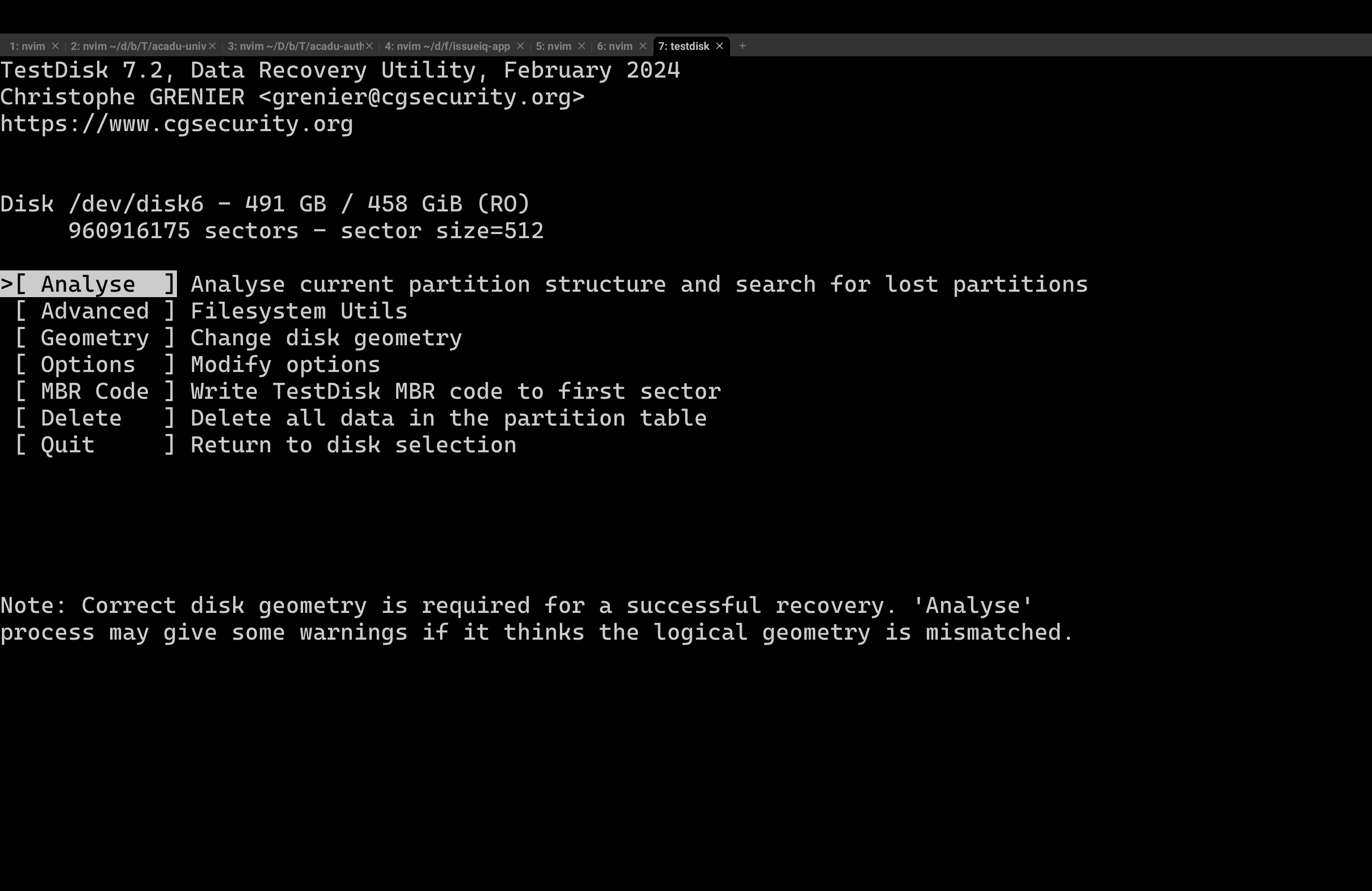
Here, it shows the available partition. Click on quick search ( might take a while )
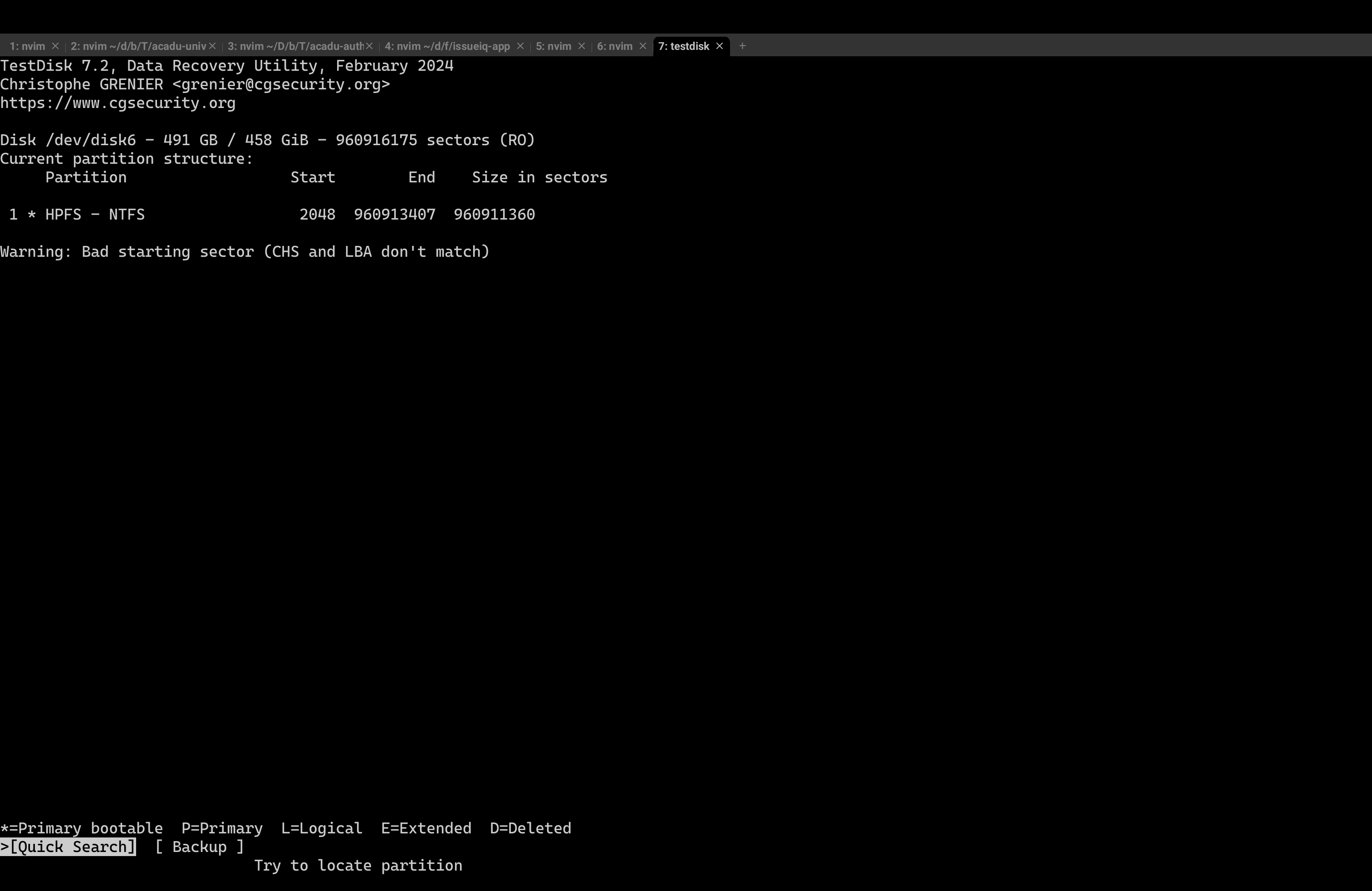
This confirms that this is the only available partition
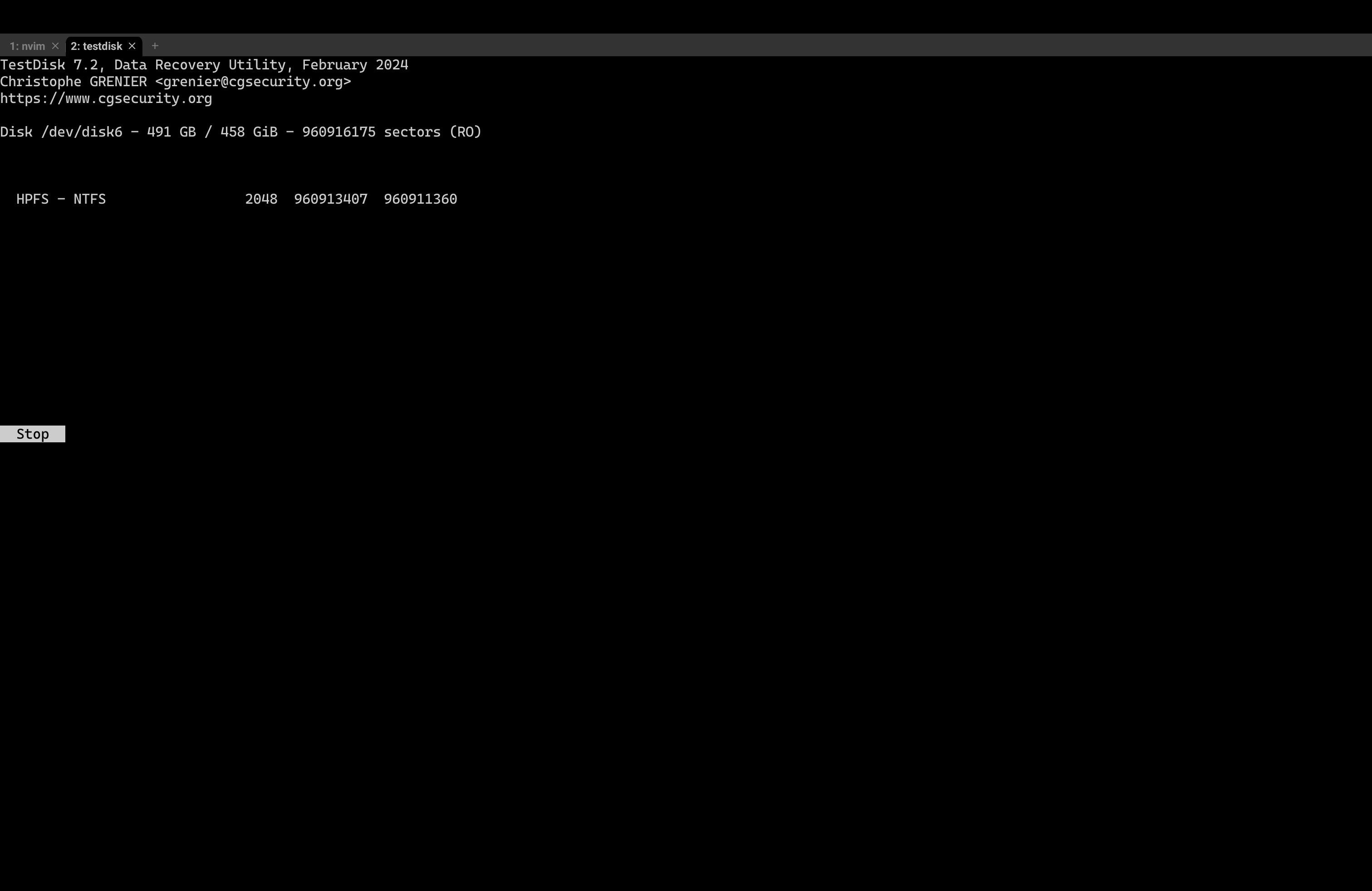
Select STOP and proceed with that partition.
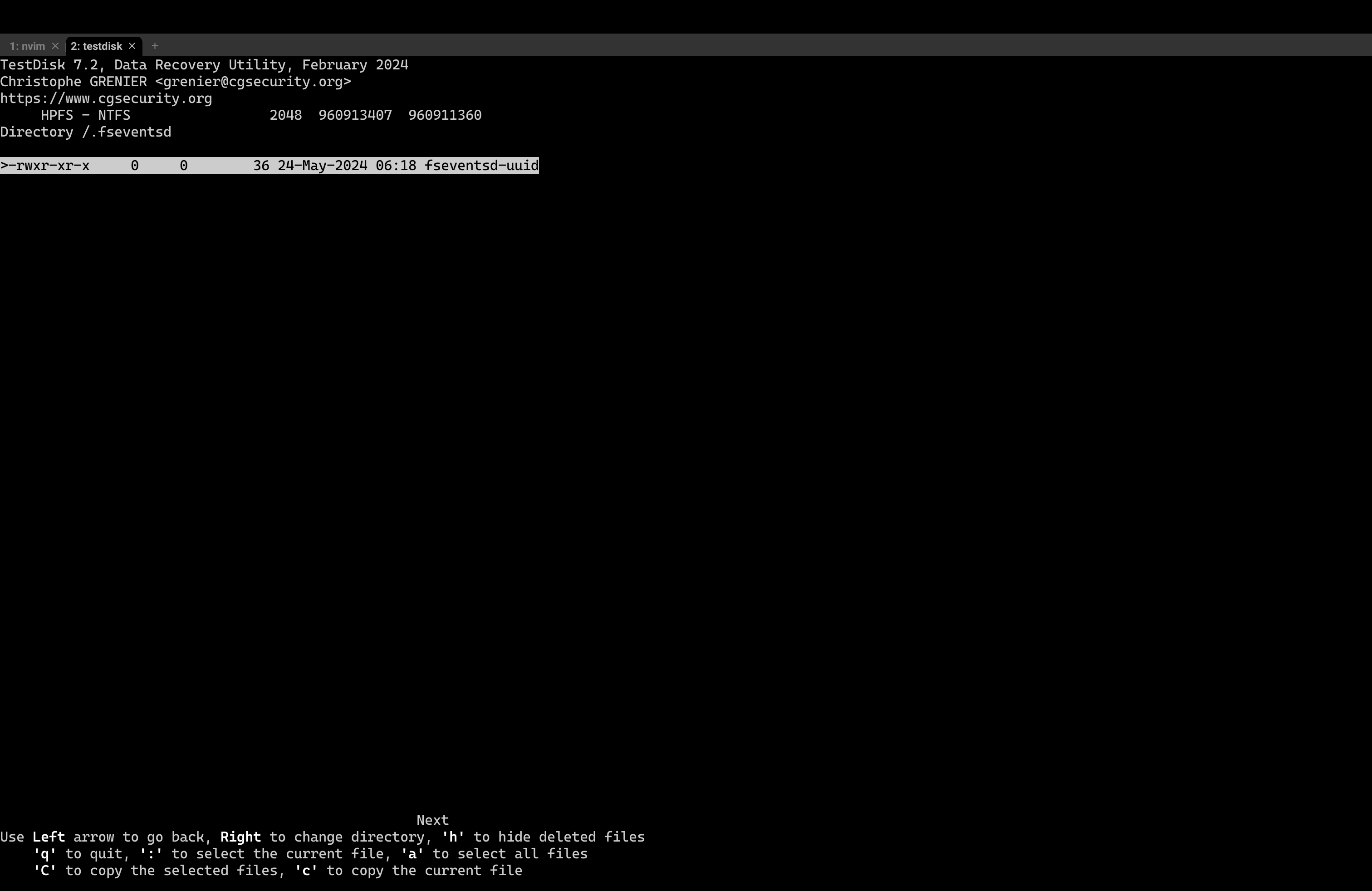
Here you can see all my files!
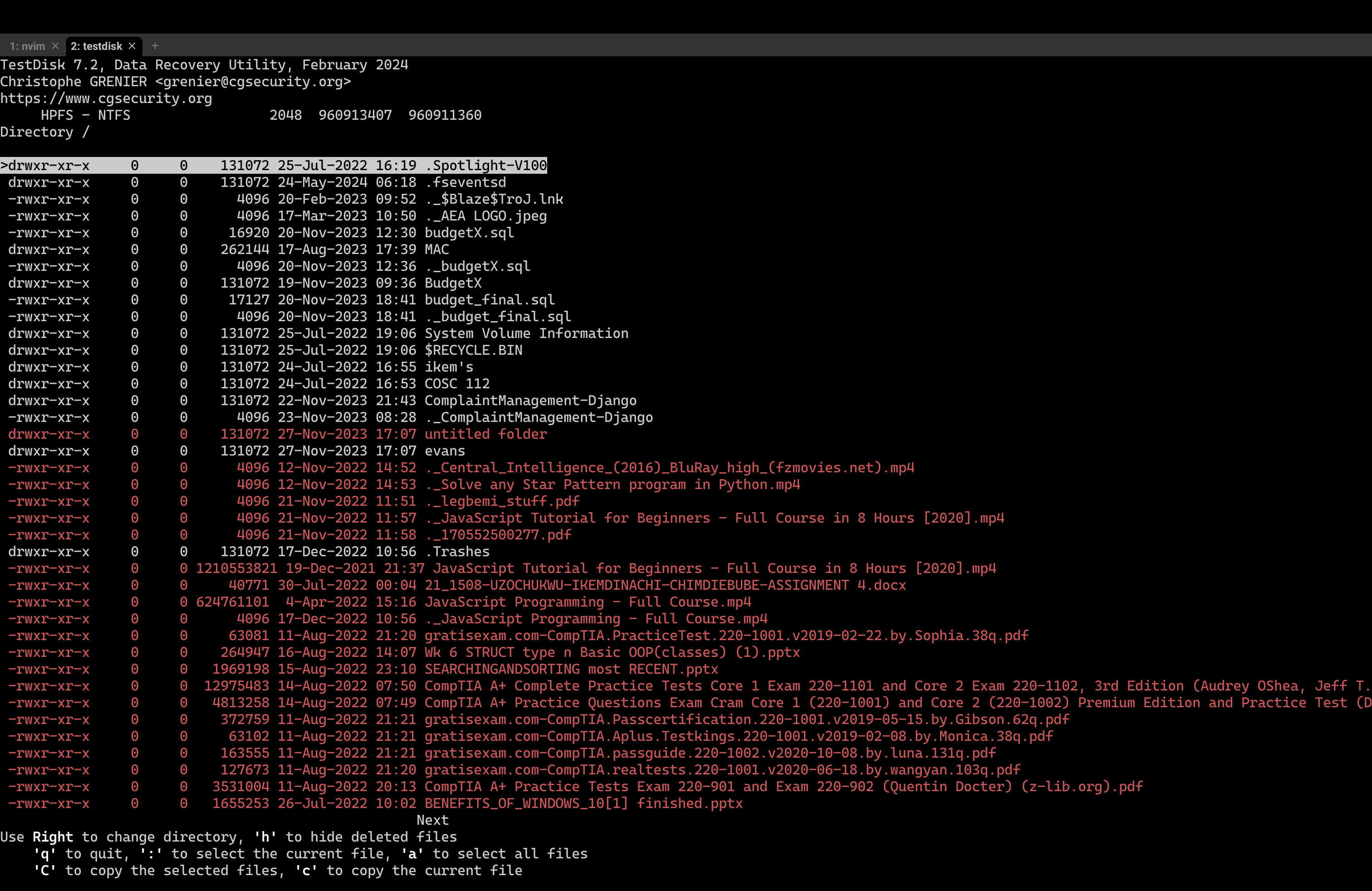
The files in RED : are files that were deleted previously or otherwise problematic
The files in white : are files that are fine and directly accessible
When you move to your desired file, to recover it : use the c key.
It moves you to a different directory on your machine to paste the copied files
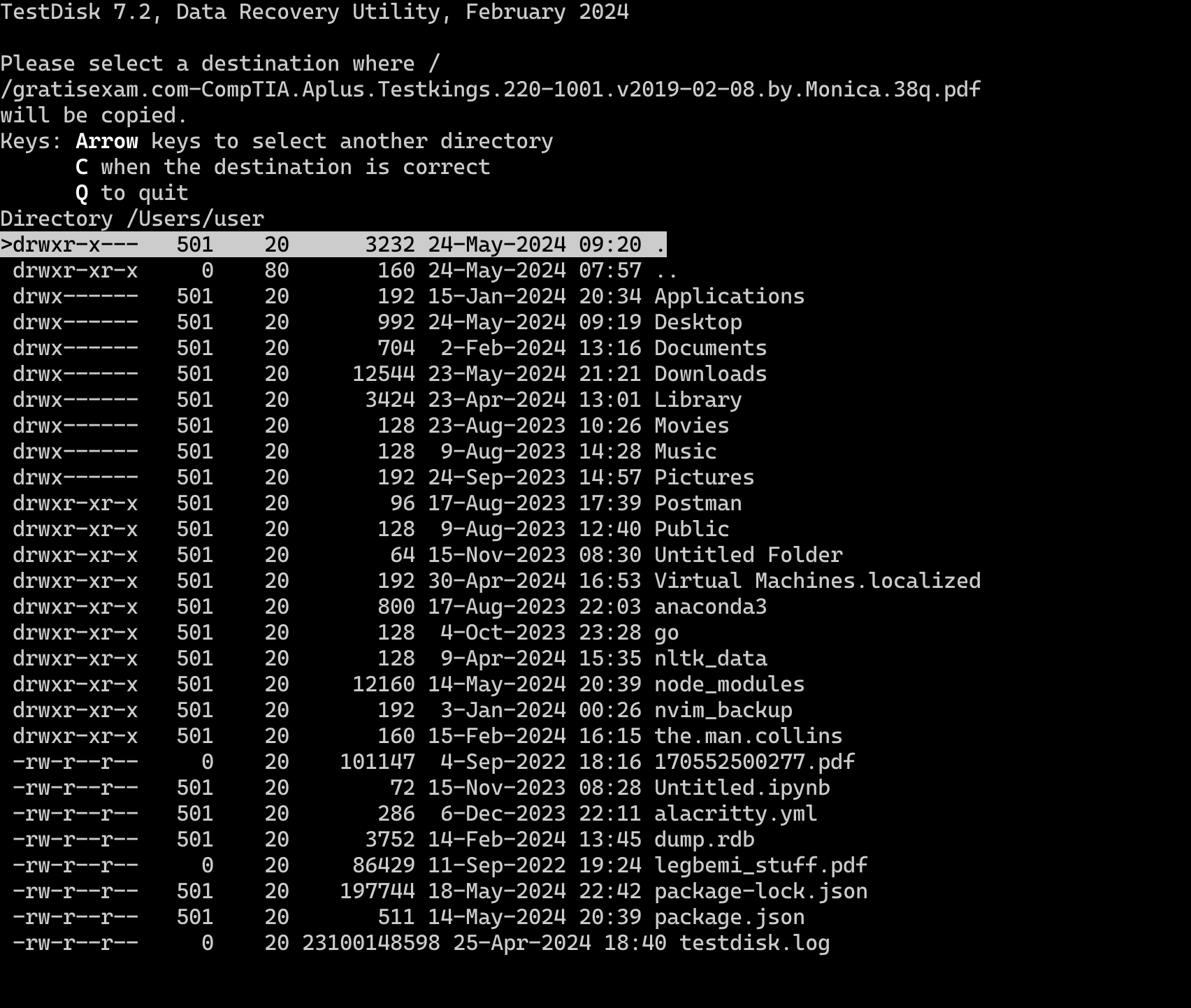
You can use the arrow keys to go in and out of the directories
As Instructed, use the C key when the destination is correct
You should see this

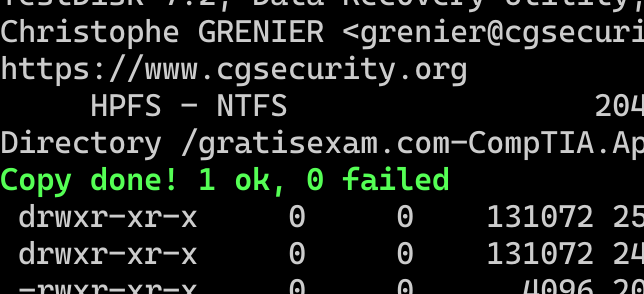
You can check the directory you selected for your file